| Wordfast Server
Overview
Wordfast Server (WFS) is an efficient solution to centralize large Translation Memories and share them over the Internet. It is an agile and nimble self-contained application: a single Windows executable file that does not require any third-party DBMS. It deploys in a few seconds.
WFS is geared toward large corporate translation departments, as well as Language Service Providers, who have a previous experience in Translation Memories and Terminology, and in the Wordfast ecosystem of translation tools. Deploying WFS will require personnel with basic experience of Translation technology, and IT personnel familiar within setting up and maintaining a client-server architecture.
WFS supports very large translation memories, which are beyond the scope of local desktops. This means hundreds of millions of Translation Units (TUs), up to a billion per single TM. WFS works efficiently with both large and small TMs, serving matches reliably, with negligible response times.
WFS offers full rights management, like read-only or read-write rights per translator, or per TM, etc.
Terminology is also served alongside translation memory. The format for both TMs and glossaries is the same as Wordfast Classic's format, arguably the simplest, most user-friendly TM and glossary format.
Latest version
The latest version is 1.14.742.286, released March 4, 2026.
If you run Wordfast Server, please update. It's a drop-in replacement for your existing WfServer.exe, your previous setup is 100% preserved.
This release solves many stability and security issues that recent security measures in Microsoft Windows rendered necessary.
It's also ready for Windows Server 2025.
Full changelog at https://www.wordfast.com/support_release_notes#wfs.
Contact
If you have any question concerning Wordfast Server, please contact us.
Downloads
| Wordfast Server |
Runs full-featured in demo mode with up to three connected clients.
Only requires a connected Windows workstation. Unlimited number of TMs, glossaries, languages.
Can be used with Wordfast Classic, Wordfast Pro, Wordfast Anywhere. |
| Wordfast Server Full manual |
Contains all you need to get started with WFS, and run it. It also includes the API for third-party application developers. |
| Quick startup guide |
Quick startup guide for localization project administrators. Requires moderate IT & network administration skills. |
Using a local Wordfast Server (WFS) as an MT source for Wordfast Pro.
deepL is demonstrated here, any other MT provider can be used. This works on Windows. On a Mac, WFS would need to run in a Windows VM.
Prerequisite: - You have an account at deepL, and an API key.
- You have downloaded and started WFServer.exe.
- You have a TM in Wordfast Classic format (TXT) with exactly the same language codes as your current WF Pro project.
If you don't have one, download this one. Unzip it.
Using a text editor like Notepad, change all language codes to exactly reflect those in your current Wf Pro project.
In WFS, use the "TMs" tab to set up your WFC TM.
Use the "browse" button at the bottom in the "Translation memory file name" group to open your TM.
Check the "Write" and "Unrestricted" checkboxes, but do not provide a password. Provide a simple "friendly" name like "MYTM".
More info here.
Use the "Accounts" tab to create an account. Provide DEEPL as name, DEEPL as password, for simplicity's sake (other names OK).
Select the TM you previously created. Set the small "Nb" field to 10.
Check the "Active" and "Write TM" checkboxes. Click "Apply" (click "Apply" every time you modify the setup).
More info here.
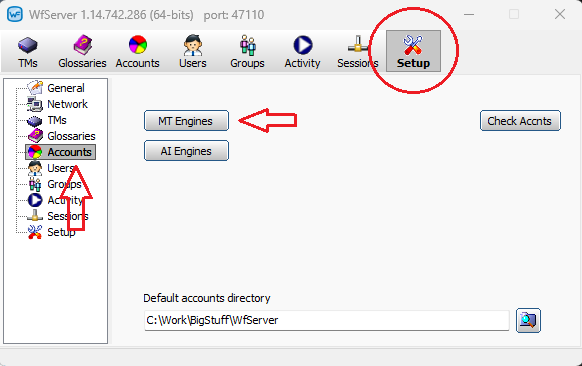
Use the "Setup" tab > "Accounts" section, click the "MT engines" button:
Select "deepL" in the drop-down list. Change the settings to reflect what's in the screenshot below:
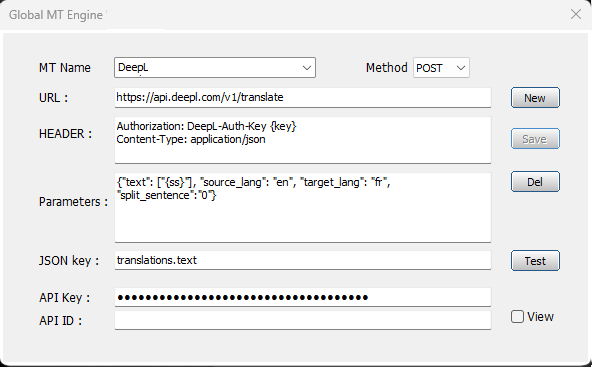
Here are the values so you can copy-paste them:
URL:
| https://api.deepl.com/v1/translate |
HEADER:
| Authorization: DeepL-Auth-Key {key}
Content-Type: application/json |
Parameters:
| {"text": ["{ss}"], "source_lang": "en", "target_lang": "fr", "split_sentence":"0"} |
JSON key:
| translations.text |
In "Parameters", enter your language codes (those are en and fr in the screenshot).
Those must be just 2-character long like en, de, fr, pt, ru, etc. Do not add or remove quotes, accolades, etc.
Set the top "Method" to POST. Paste your API key in the "API key:" field.
Save. Test.
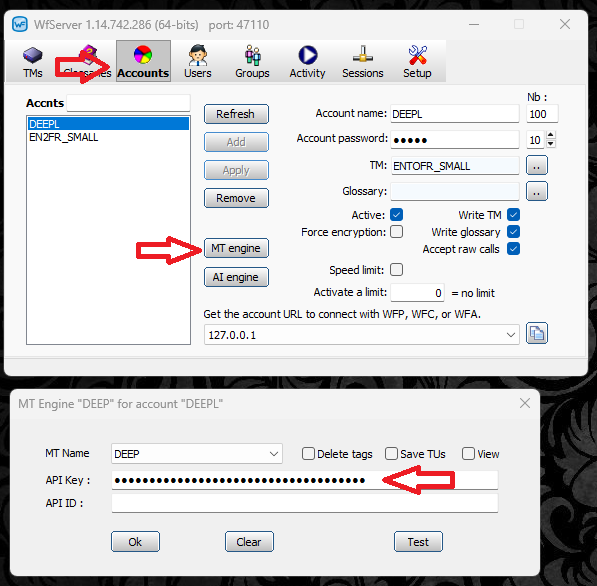
When the test succeeds, move to the "Accounts" tab. Select the account that you use, add the newly-created "TM engine".
Do not forget to also paste your deepL API key there:
In Wf Pro's current project, use the "Project TM" tab, click "Connect to Remote TM", choose "Wf Server" as provider (the choice in the middle).
Use "DEEPL" as symbolic name. In the URL field, paste the following:
wf://DEEPL:DEEPL@localhost:47110
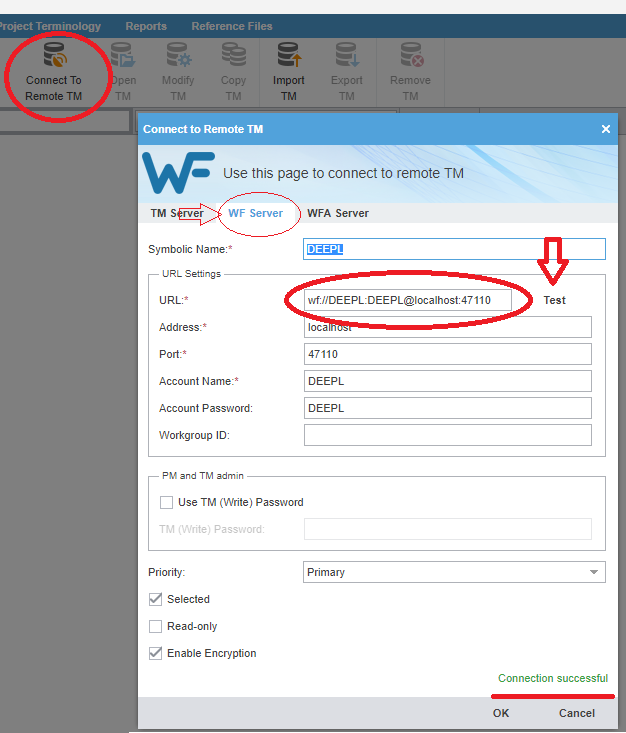
Click "Test". If the test is successful, there should be a green "Connection successful" mention at the bottom.
From this point on, Wf Server is a provider of deepL MT to Wordfast Pro. |